The built-in way to snip on a Mac
Macs do not have an app called Snipping Tool, but macOS has the same basics built in. These shortcuts work on every recent version of macOS:
- Shift+Command+4: drag to capture part of the screen. This is the closest match to Windows+Shift+S.
- Shift+Command+4, then Space: capture a single window.
- Shift+Command+3: capture the whole screen.
- Shift+Command+5: open the screenshot toolbar with all the options, including screen recording.
- Add Control to any of these to copy the screenshot to the clipboard instead of saving a file to your desktop.
To mark up a screenshot, click the thumbnail that appears in the corner. The Markup window lets you draw, add shapes and text, and crop.
Where the built-in tool falls short
The Mac tools are fine for an occasional screenshot. People who capture all day, or who just switched from Windows, tend to hit the same walls:
- Copying to the clipboard means remembering an extra key, and saving drops files all over your desktop.
- Markup opens as a separate step after the capture, not in the same motion.
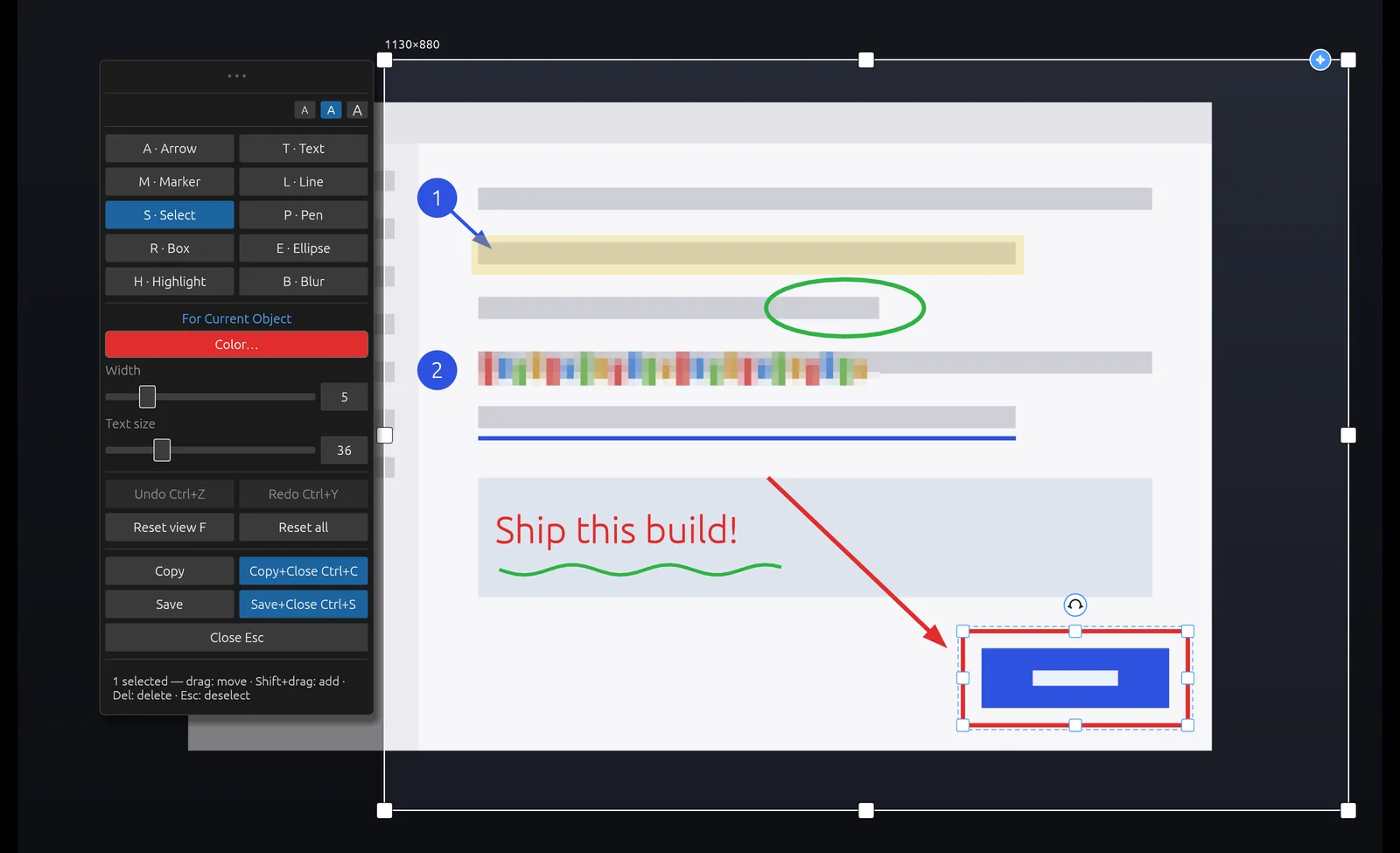
- There is no blur or pixelate tool for hiding passwords, emails or customer data.
- There are no numbered step markers for how-to screenshots.
Scrannotate: snipping and markup in one motion
Scrannotate works the way Windows users expect a snipping tool to work, with a better editor attached. Press your hotkey, drag over the area, and the editor is already open around your capture. Add an arrow with A, a box with R, text with T or blur with B. Press copy and it is on your clipboard, ready to paste into Slack, email or a ticket.
It runs natively on Apple Silicon and Intel Macs running macOS 11 or later, and the same app is available on Windows, so the workflow is identical on both machines. It costs $14.99 once on the Mac App Store.
Mac screenshot options compared
| Scrannotate | macOS Screenshot + Markup | |
|---|---|---|
| Price | $14.99 once | Free |
| Capture and annotate in one step | Yes | No, Markup is a second step |
| Blur sensitive details | Yes | No |
| Numbered step markers | Yes | No |
| Edit marks after placing them | Yes | Yes, until you close Markup |
| Same tool on Windows | Yes | No |