Every built-in way to screenshot on Windows
- Windows+Shift+S: opens the Snipping Tool capture bar. Pick rectangle, window, full screen or freeform. The capture goes to your clipboard.
- Print Screen: on Windows 10 it copies the full screen to the clipboard. On recent versions of Windows 11 it opens the Snipping Tool by default; you can change this in Settings.
- Windows+Print Screen: saves the full screen to Pictures, then Screenshots.
- Alt+Print Screen: copies just the active window to the clipboard.
- Windows+G: opens the Game Bar, which can also take screenshots and record.
Which one should you use?
For a quick capture you will paste right away, Windows+Shift+S is the best built-in option. For a full-screen record of something, Windows+Print Screen saves a file automatically. If you need to point things out, hide sensitive details or walk someone through steps, the built-in editor gets slow, and a dedicated tool pays for itself quickly.
When to use Scrannotate instead
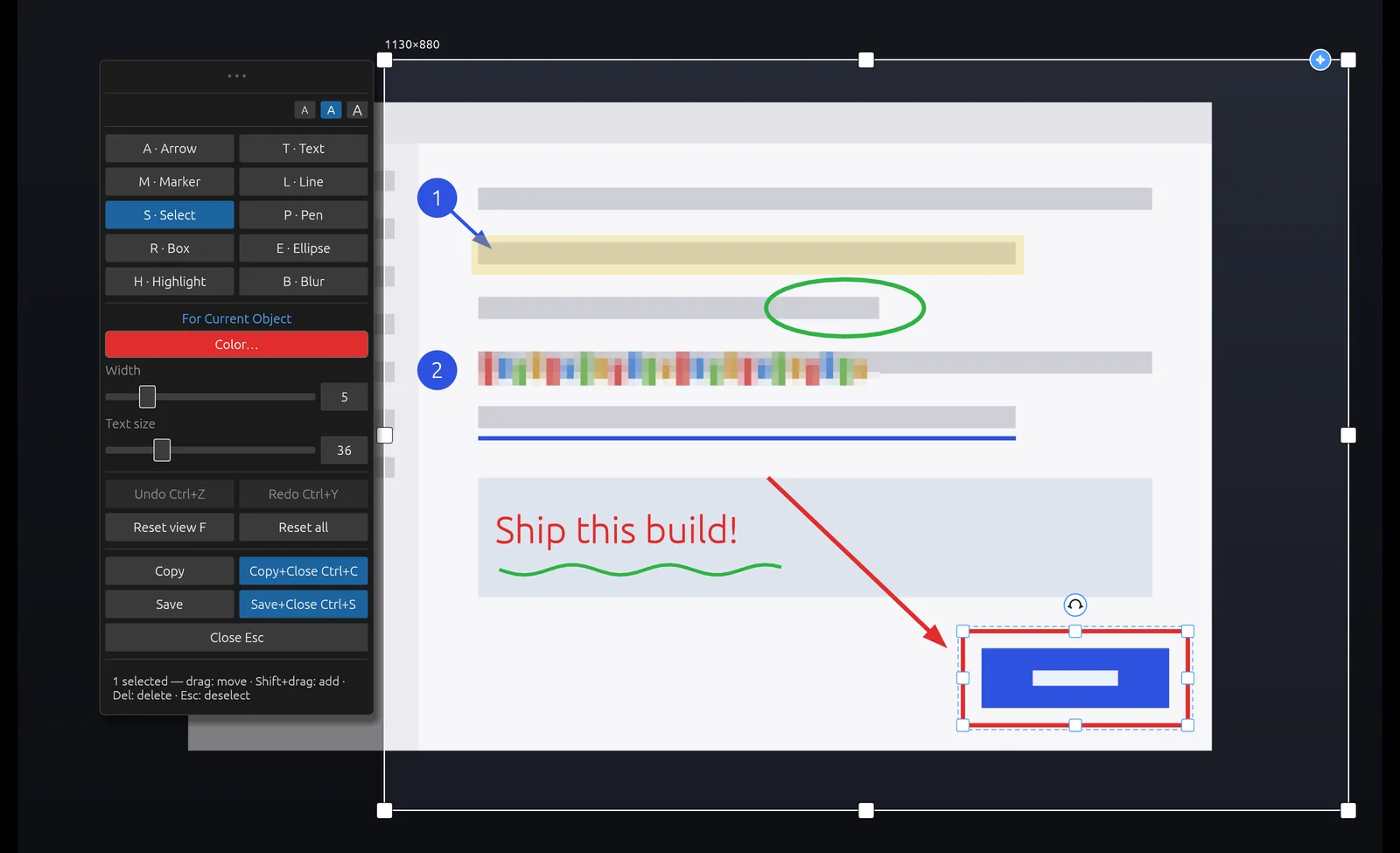
Scrannotate is for people who screenshot and explain all day: support teams, developers, QA testers, trainers and project managers. Press your hotkey, and the editor opens around your capture with every tool on one key. Add arrows, boxes, numbered markers and blur, then Ctrl+C to copy and close.
It runs on Windows 10 (version 1809 or later) and Windows 11, 64-bit. It costs $14.99 once on the Microsoft Store, with free updates, and the same app runs on Mac.
Windows screenshot options compared
| Scrannotate | Snipping Tool | Print Screen keys | |
|---|---|---|---|
| Price | $14.99 once | Free | Free |
| Region capture | Yes | Yes | No |
| Annotate in the same step | Yes | No | No |
| Editable marks | Yes | No | No |
| Blur and numbered markers | Yes | No | No |
| Screen recording | No | Yes | No |